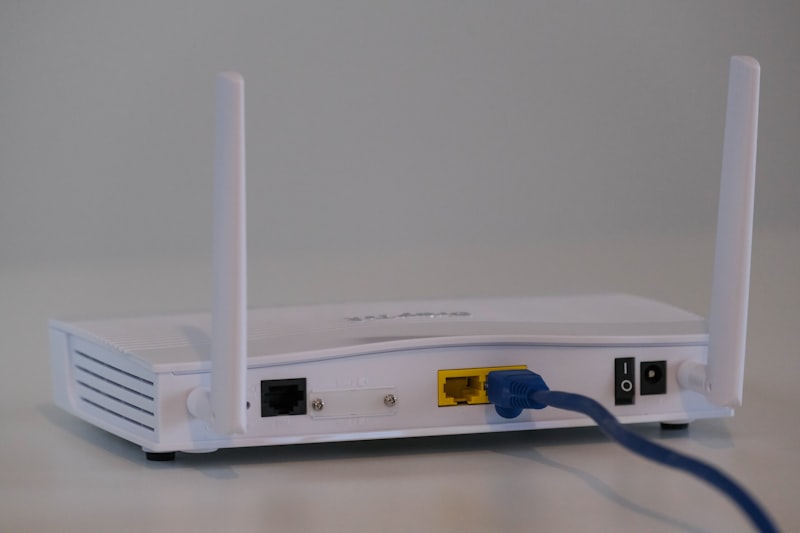
If you have bought a new cable modem and Wi-Fi router, setup usually takes only a few steps. Doing them in the right order prevents connection problems later on.
Step-by-Step Cable Modem – Router Setup
1️⃣ Connect the Modem
Plug the cable line into your modem's coaxial input. Connect the power adapter to turn on the modem and wait for the lights to settle.
2️⃣ Make the Ethernet Connection
Connect an Ethernet cable from your modem's LAN port to your router's WAN (Internet) port. This cable carries the internet connection to the router.
3️⃣ Power On the Router
Connect the router's adapter and turn the device on. Start-up can take a few minutes; many models detect the internet connection type automatically.
4️⃣ Log In to the Web Interface
Connect to the router's default Wi-Fi network with your computer or phone (the network name and password are usually printed on the device label). Access the management panel by entering 192.168.1.1 or the address on the device label in your browser. On NETGEAR devices you can also use routerlogin.net.
5️⃣ Set the SSID and Password
Create your wireless network name (SSID) and a strong password. If the device supports WPA3, enable it.
6️⃣ Firmware Update
Updating the device firmware after setup is important for stability and for closing security holes.